
The Problem: "Reset Unsuccessful" & Negative Mileage Errors
Modern BMW F-Series and G-Series vehicles (such as the F30 3-Series, G20, F10, G30 5-Series, and X-Series) use an intelligent maintenance system called Condition Based Service (CBS). Instead of a single "service engine" light, the car independently tracks Engine Oil, Brake Fluid, Front/Rear Brake Pads, and Vehicle Checks.
After performing maintenance, such as an oil change or a brake pad replacement, owners typically try to clear the dashboard warning using the free, manual method: holding the trip/odometer button on the instrument cluster. However, thousands of drivers run into a highly frustrating roadblock: the progress bar fills up, but the screen abruptly displays "Reset Unsuccessful" or "Reset Impossible". In worse cases, the service counter drops into a red negative mileage loop (e.g., -500 miles).
Diagnostic Checklist: Why Do Manual Cluster Resets Fail?
BMW technicians consistently point out that the manual trip-button reset is incredibly strict. The instrument cluster (KOMBI) will instantly abort the routine if any operating prerequisite is breached or if the vehicle detects a sensor contradiction. Before assuming your car is broken, check this troubleshooting matrix:
- The Parking Brake Trap: This is the most widespread trap on F- and G-chassis vehicles. BMW safety logic requires the Electronic Parking Brake (EPB) and Auto-Hold to be completely released (off) before initiating any CBS reset—even if you are only trying to reset the front brakes.
- Incorrect Diagnostic / Ignition State: The engine must be completely OFF. For F-Chassis cars, press the Start button once without touching the brake pedal. For newer G-Chassis cars (iDrive 7/8), you often need to rapidly press the Start button three times (without the brake) to enter formal Diagnostic Mode.
- Tripped or Reused Brake Wear Sensors: BMW brake wear sensors are sacrificial two-stage circuits. If you change your pads but try to reuse a partially worn sensor (or install a cheap aftermarket sensor with the wrong resistance), the module detects a contradiction. It expects a fresh 0 Ω continuity; if it doesn't see it, it flags a permanent "Reset Unsuccessful" error. You must install a brand-new sensor.
- Incorrect iDrive Date and Time: If your battery was recently disconnected and your clock/calendar is blank, the CBS algorithm cannot calculate the next time-based service due date and will reject any reset attempts.
- Stored Hard Fault Codes: If a service item drops below zero and triggers a permanent red Check Control message, a hard fault code is logged in the DSC or DME module. The manual odometer button cannot clear hard fault codes; it can only request routine interval resets.
The Flawed Traditional Route vs. The Smart Solution
When the manual cluster trick fails or the vehicle logs a hard fault code due to severely overdue maintenance, the traditional advice is to visit the dealership. The fix usually involves using complex, expensive factory diagnostic software on a laptop to run full vehicle scans, clear shadow codes, and manually force a CBS data correction.
Today, you don't need a laptop, expensive dealer tools, or confusing button combinations. You can bypass the strict cluster limitations and write the initialization values directly to the CBS modules using your Android smartphone. The DiagBimmer App effortlessly solves these issues via direct UDS protocols.
Step-by-Step: How to Reset BMW Service Lights with DiagBimmer
Before beginning, ensure that you have actually performed the physical maintenance (e.g., changing the oil or installing new brake pads with a brand-new OEM-spec wear sensor). Once the hardware is sorted, follow these simple steps:
- Download the App: Get the DiagBimmer App from the Google Play Store.
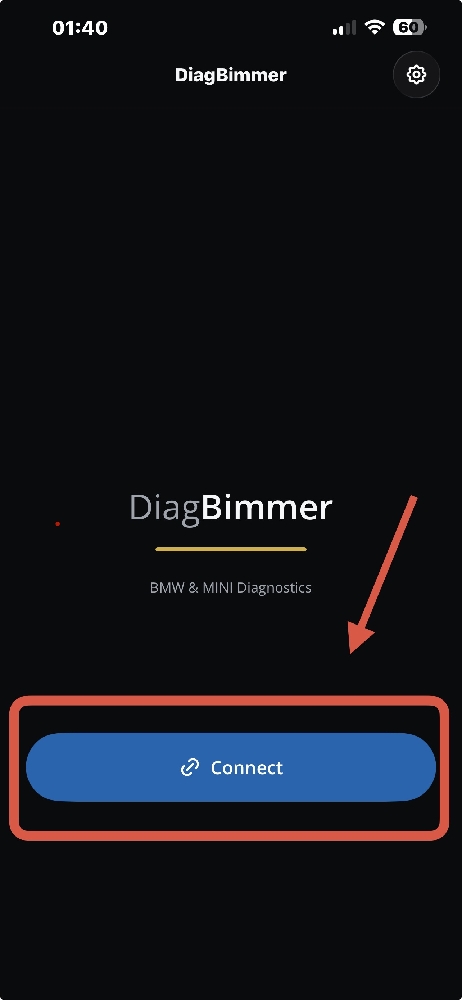
- Connect to Your BMW: Plug your OBD2 adapter into your car (an ENET cable is strongly recommended for the fastest and most reliable connection; high-quality BLE / Wi-Fi ELM327, vLinker, or OBDLink can also be used). Turn the ignition ON (Engine OFF). Open the DiagBimmer app and tap the "Connect" button.
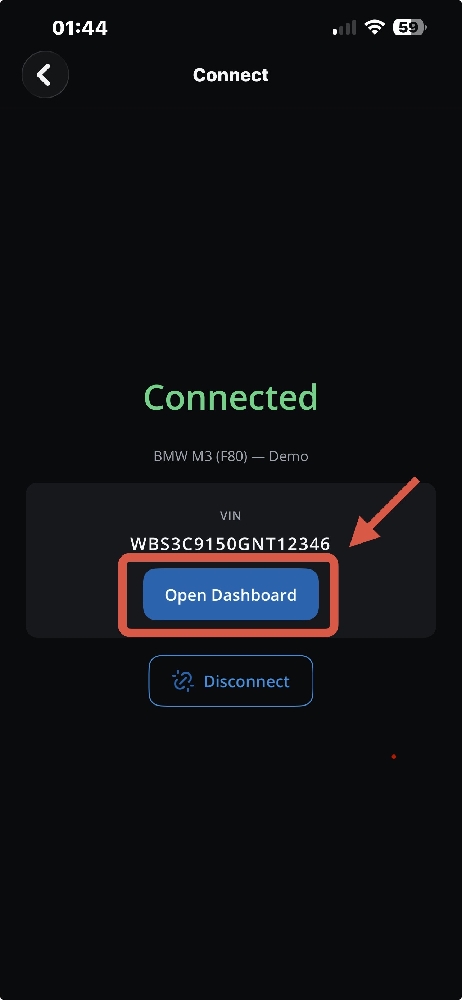
- Open the Dashboard: Once your vehicle's VIN appears and the connection is successful, tap the "Open Dashboard" button.
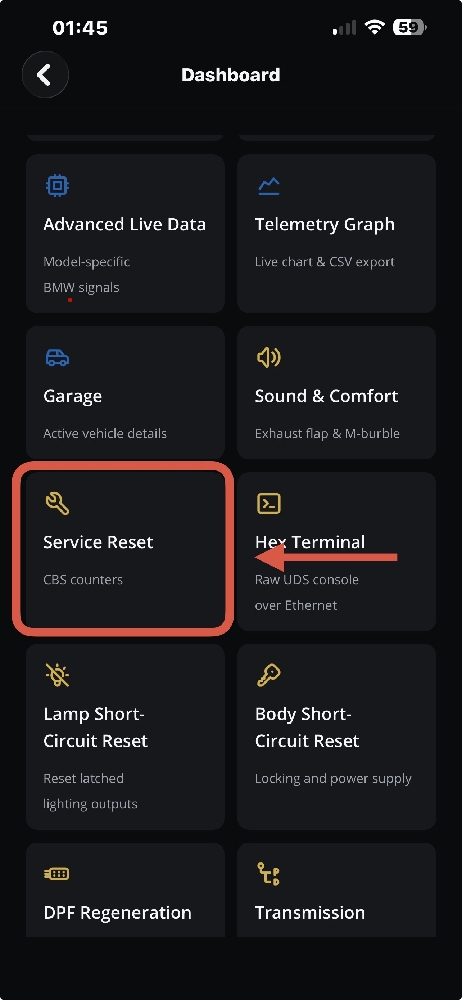
- Navigate to Service Reset: Scroll through the features grid and select the "Service Reset" (CBS counters) menu. This section communicates directly with the CBS data blocks in your vehicle's modules.
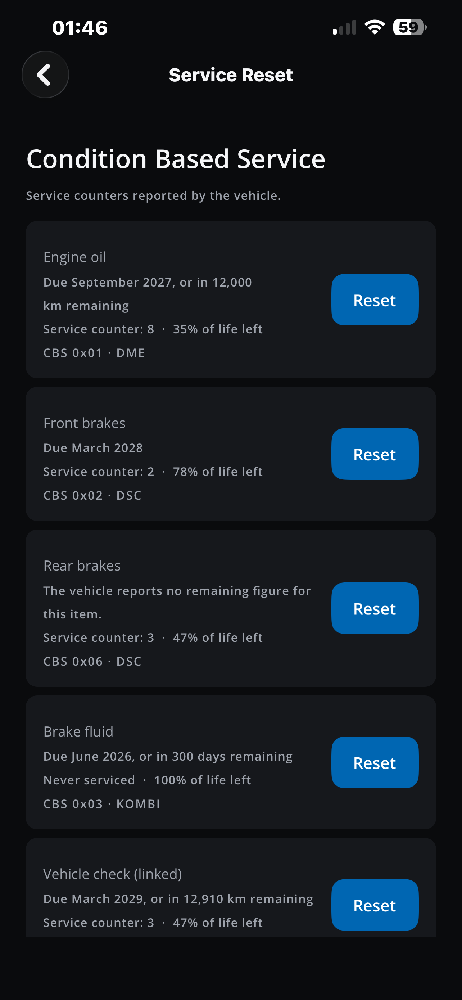
- Execute the Reset: The app will scan and display the real-time status of all your CBS items (Engine oil, Front brakes, Rear brakes, Brake fluid, and Vehicle check). Simply find the item you just serviced and tap the "Reset" button next to it.
Why App-Based Resets Guarantee Success
Unlike the instrument cluster trip button, which acts merely as a "request" to the car's computer, diagnostic software communicates directly with the engine and brake modules (DME/DSC). When you tap "Reset" in DiagBimmer, it bypasses the strict UI timeouts, ignores cluster lockouts, and writes fresh initialization values directly into the CBS data block. This easily pulls your vehicle out of negative mileage loops and instantly clears the red dashboard warnings.
Important Note: If a brake pad reset fails even via OBD diagnostic software, it is a 100% confirmation of a physical hardware issue (e.g., a defective wear sensor, a bent connector pin, or a damaged wire harness). Replace the sensor circuit and run the app reset again!